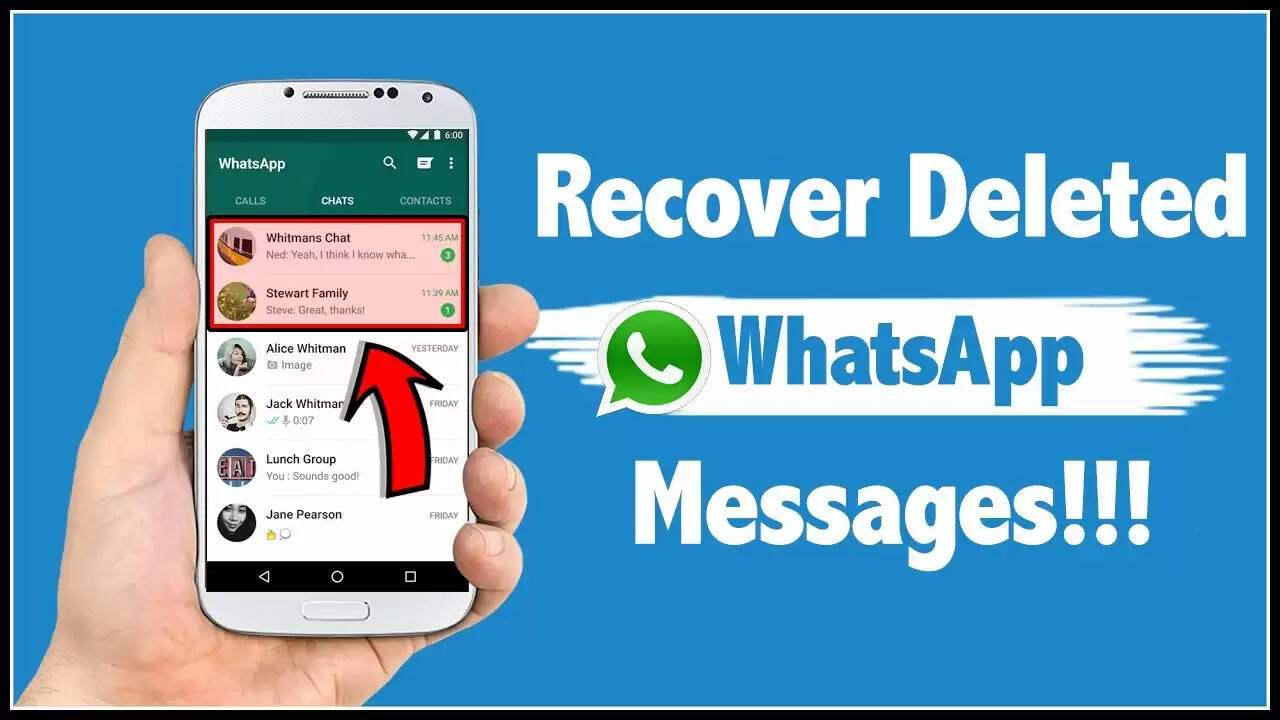
If you use WhatsApp, you might be interested in learning how to retrieve deleted messages. The programme does offer a mechanism to accomplish that, but it requires you to restore your data from a backup. The procedure will vary depending on the type of smartphone you’re using and the location of the backup data. Here’s how to accomplish it on an iPhone or an Android device.
From a Google Drive back-up:
Again, for this to work, you must already have a backup of your WhatsApp conversations. However, WhatsApp will automatically attempt to recover it from your backup data file if you reinstall the programme without having made any earlier backups from Google Drive.
1. First, delete WhatsApp and then reinstall it.
2. Launch the app and confirm your phone number.
3. Select Restore.
4. Click on Next.
Once the startup procedure is finished, your conversations will then appear. WhatsApp will then begin recovering your media files.
From a local back-up
1. Access the File Manager.
2. Select Database after entering the WhatsApp folder.
3. Select the msgstore.db.crypt12 file.
4. Change the file’s name to msgstore BACKUP.db.crypt12.
5. Choose the most recent backup and give it the new name msgstore.db.crypt12.
6. Launch the Google Drive application, choose the three-line symbol, and then select Backups.
7. Remove the backup of WhatsApp from the backups folder.
8. Reinstall WhatsApp after uninstalling it.
9. Open the app and enter your phone number to confirm it.
10 Click Restore.
How to get your iPhone’s deleted WhatsApp messages back
To retrieve your texts from an iPhone, much like from an Android device, you’ll need a backup that was created using iCloud.
1. On your phone, remove WhatsApp and then reinstall it.
2. Open the app and enter your phone number to confirm it.
3. Select Restore to begin the procedure for retrieving your data from a backup and your deleted communications.
About the Author